The dreaded Battlefield 6 Connection Failed error is ruining matches for players across all platforms. Whether you’re on PC or PS5, a failed connection can happen without warning-blocking you from logging in, kicking you out of matches, or displaying cryptic codes like 1:85008S:4688822970:0Q.
In this guide, you’ll learn the root causes of Battlefield 6’s most common connection failures, how to fix them, and how tools like ExitLag help prevent future issues.
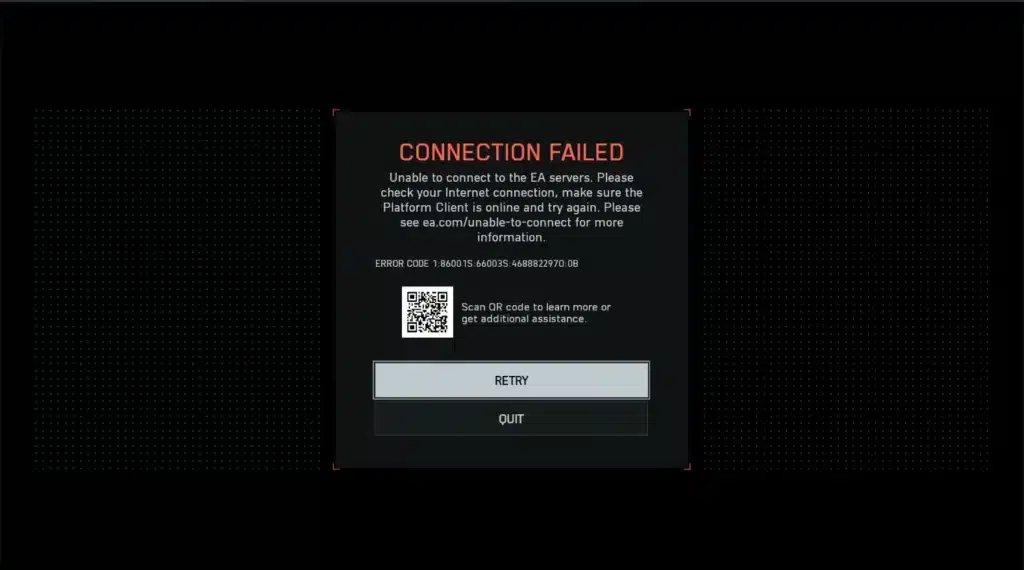
What Does “Connection Failed” Mean in Battlefield 6?
This error message indicates a failed attempt to establish or maintain a link between your device and EA’s game servers. According to EA’s official help center, this can result from:
- Server downtime or overload
- Poor network conditions
- Routing errors between your ISP and EA infrastructure
- Local software conflicts (firewall, anti-cheat)
Common Battlefield 6 Connection Errors
Here are some of the most frequent errors reported by the community:
General Connection Failures
- “Connection Failed” (generic error)
- “Unable to connect to EA servers”
- “Server timeout”
- Error code: 1:85008S:4688822970:0Q
Platform-Specific Notes
- PC: DNS conflicts, anti-cheat verification issues, or game file corruption
- PS5: Reported by users – login queues, region-based matchmaking errors, or NAT type restrictions
What Causes the Connection Failed Error?
Server-Side Problems
- EA maintenance windows
- High traffic during seasonal events
- Cloud provider outages (e.g., AWS outage on Oct 20, 2025 – reported by Windows Central)
Local Network Issues
- Weak Wi-Fi signal or shared bandwidth
- DNS misconfiguration
- Outdated network drivers (PC)
Routing or ISP Conflicts
- Poor ISP-to-EA peering
- Blocked or throttled ports
- Inconsistent data path to game server
Game Installation or Platform Conflicts
- Missing files or bad installs
- EA App or PlayStation Network issues
- Secure Boot or TPM misalignment (PC only)
Step-by-Step Fixes for Battlefield 6 Connection Issues
If you’re stuck with the “Connection Failed” screen, try the following. Note: Steps may vary by platform and user system, and results are not guaranteed.
1. Verify EA Server Status
- Visit Battlefield 6 server status page on EA Help
- Check for maintenance or outages by platform (PC, PS5, Xbox)
2. Restart Your Game and Hardware
- Fully close and relaunch Battlefield 6
- Power cycle your modem and router
- Restart your PC or console
3. Reset DNS Settings (PC)
Run these commands in Command Prompt (admin mode):
use: ipconfig /release
ipconfig /flushdns
ipconfig /renew
netsh winsock reset
netsh int ip reset
(Results may vary depending on your system setup)
4. Switch to Public DNS
Many users on EA forums have reported success by using public DNS servers:
- Google: 8.8.8.8, 8.8.4.4
- Cloudflare: 1.1.1.1
This is a user-reported workaround and may not resolve all issues.
5. Check Firewall and Security Software (PC)
- Allow Battlefield 6 and EA App through Windows Firewall
- Ensure antivirus software isn’t blocking outbound connections
6. Verify Game Files
- On PC: Use Steam or EA App to verify installation integrity
- On console: Check for any pending system updates via your platform’s system menu
7. Update Network Drivers (PC Only)
- Use Windows Update or Device Manager to install the latest LAN/WiFi drivers
8. Test a Different Network
- Try connecting via mobile hotspot to isolate ISP issues
- If hotspot works, your home network is likely the problem
Also see:
- Battlefield 6 server connection error
- Battlefield 6 can’t connect to server
- How to fix connection to EA servers lost error in Battlefield 6
- Battlefield 6 connection errors
- Can’t join match Battlefield 6
Stay Connected with ExitLag
Even if your setup is perfect, Battlefield 6 might still drop due to regional routing issues. ExitLag fixes this by rerouting your connection in real-time.
Why ExitLag Works:
- Multipath Routing: Selects the most stable path to EA servers
- Traffic Shaper: Prioritizes Battlefield 6 over background traffic
- Worldwide Optimization: Works across all regions
Setup Steps:
- Create your ExitLag account
- Download and install the client
- Select Battlefield 6 and apply routes
- Enjoy lag-free play with ExitLag active
Whether you’re in Brazil, SEA, Russia, or the U.S., ExitLag ends dropped packets, ping spikes, and login errors.
Platform-Specific Fixes for PS5 and Xbox Players
Connection errors affect console players differently due to system architecture and network handling. If you’re encountering the Battlefield 6 Connection Failed error on PS5 or Xbox Series X|S, try these console-specific strategies:
1. Reconfigure NAT Type
- Go to Settings > Network > View Connection Status (PS5)
- If NAT Type is Strict, connection issues are more likely
- Switch to NAT Type 2 (Moderate) or 1 (Open) by enabling UPnP in your router settings or manually forwarding ports
- This method may help in many cases, as reported by users on EA forums
2. Change DNS on Console
- Navigate to Network > Settings > Set Up Internet Connection
- Choose Manual and input:
- Primary: 8.8.8.8
- Secondary: 8.8.4.4 (Google) or 1.1.1.1 (Cloudflare)
- Restart console and game
- Many players report improved stability with this setup, though results vary
3. Re-login and Clear Cache
- Sign out of your PlayStation/Xbox account and restart the console
- Power cycle by unplugging it for 2 minutes
4. Check EA Account Linking
- Visit your EA Account Settings online
- Ensure your PSN/Xbox Live account is correctly linked
- Relink if needed, then reboot the game
Community-Reported Port Forwarding Settings for Battlefield 6
Manually opening ports on your router may stabilize connections, especially for strict NAT users. While these ports are commonly referenced by community sources, they are not officially confirmed by EA for Battlefield 6.
Commonly Suggested Ports for PlayStation:
- TCP: 1935, 3478-3480
- UDP: 3074, 3478-3479
Commonly Suggested Ports for Xbox:
- TCP: 53, 80, 3074
- UDP: 53, 88, 500, 3074, 3544, 4500
PC (based on previous Battlefield titles):
- TCP: 443, 8080, 5222, 9988, 17502, 20000-20100
- UDP: 3659, 14000-14016, 22990-23006, 25200-25300
Always restart your router after applying changes. These port ranges are estimated from community experience and past Battlefield releases.
Router & ISP-Level Optimization
Some advanced fixes involve network-side changes that affect routing quality and stability.
Enable QoS (Quality of Service)
- Prioritize your gaming console or PC’s MAC address or IP
- Set Battlefield 6 or gaming traffic to highest priority
Disable SIP ALG & Proxy Services
- These can interfere with game packets
- Found under router firewall or NAT settings
Avoid Shared Networks During Play
- Streaming, downloads, and high-bandwidth apps can disrupt gaming
Tracking EA Support & Outage Channels
When errors persist across multiple players, monitor these for updates:
- EA Help Twitter (@EAHelp)
- EA Battlefield Forums
- DownDetector – Battlefield
Report Connection Failures Properly
If issues persist despite trying all fixes:
- Submit a report via EA’s Bug Report Portal
- Include your platform, NAT type, and error code
- Attach screenshots or connection diagnostics if available
ExitLag: Your Always-On Fix for Routing Conflicts
Some connection failures aren’t caused by you-they’re routing problems between your ISP and EA’s server hubs. ExitLag solves this in real time.
Why Console Players Still Benefit
While ExitLag is designed for PC, it can stabilize network traffic on a shared router by prioritizing routes. If you’re using a shared home connection, ExitLag running on a connected PC may improve consistency network-wide.
Benefits for PC Users:
- Instant rerouting during congested traffic
- Smart protocol detection to avoid packet filtering
- Multi-region optimization for international players
Final Thoughts
The Battlefield 6 Connection Failed error is frustrating-but fixable. Whether the issue is on your console, router, or the game’s backend, this guide helps you take actionable steps.
ExitLag is your secret weapon for avoiding unstable paths, lag spikes, and random disconnects.
All game images used in this blog belong to EA/DICE. They are used for informational/educational purposes only and do not imply endorsement or affiliation with the rights holders.
Got questions or want to connect with other players? Join the conversation at the ExitLag Forum!