Tracking your frame rate in Battlefield 6 is crucial for diagnosing performance issues, especially in high-stakes firefights. Whether you’re testing settings or optimizing for ultra-low latency, enabling the bf6 fps counter gives you the visibility you need to make better adjustments and reach smoother, more responsive gameplay.
In this complete guide, we’ll walk you through how to display your FPS using in-game tools, console commands, and how it compares to external overlays like NVIDIA, Steam, and AMD tools. Mastering this feature not only improves your situational awareness but can also help fine-tune your system for a competitive edge.
How to Turn On the FPS Counter in Battlefield 6
There are two official ways to activate the FPS counter in Battlefield 6, both offered directly by EA through the in-game UI and developer console.
Option 1: Use the In-Game Performance Overlay
Battlefield 6 includes a sleek, built-in overlay that displays real-time performance metrics, including FPS, CPU usage, GPU load, RAM consumption, and latency. This is available in the settings and doesn’t require any third-party software.
Step-by-step activation:
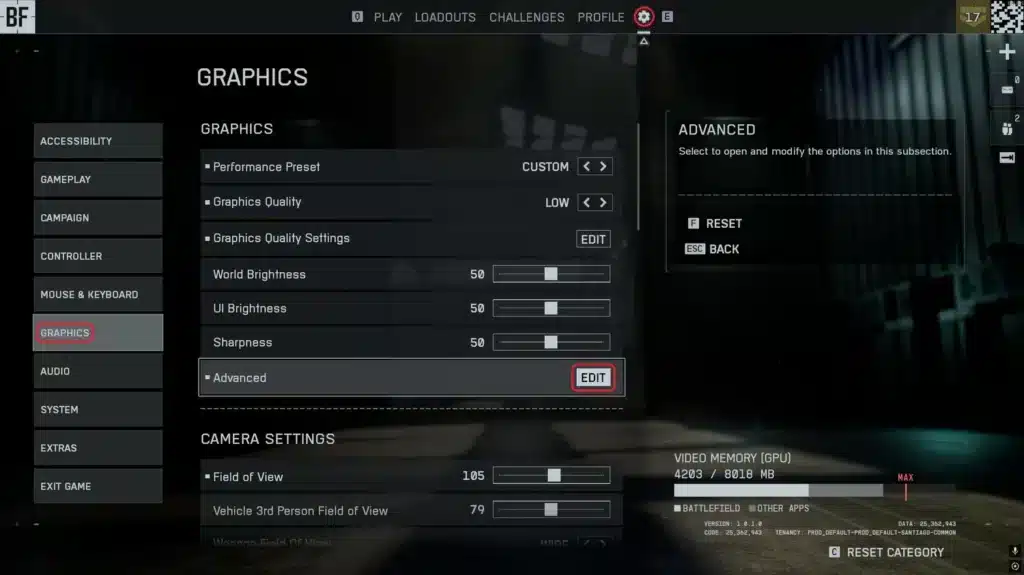
- Launch Battlefield 6 and head to Settings (gear icon in the top bar)
- Go to the Graphics tab
- Scroll down to the Advanced section
- Locate the setting labeled Performance Overlay
- Choose one of the following:
- Simple: Shows FPS only
- Detailed/Extra: Includes system info (CPU/GPU/RAM)
- Simple: Shows FPS only
- Confirm changes and return to gameplay
Once enabled, the overlay will display in the corner of your screen – usually top right or top left – and update in real time. You can keep it on continuously to monitor how different maps and combat scenarios affect your FPS.
The “Detailed” overlay also helps you identify what’s limiting your performance. For example, if your CPU usage spikes during firefights, it may indicate a bottleneck. If your GPU is maxed out on large maps, it may be time to adjust texture quality or shadows.
Option 2: Console Command Method
If you prefer the minimalist approach or need an overlay compatible with streaming/recording setups, console commands offer a powerful alternative.
How to use the FPS command:
- Go to Settings > System
- Toggle Command Console to ON
- Start a match and press the ~ (tilde) key to open the console
Type the following:
PerfOverlay.DrawFps 1
- Press Enter – your FPS will now appear in white text on screen
To remove it later, type:
PerfOverlay.DrawFps 0
This method provides a raw FPS number without the additional system metrics, making it ideal for purists or those benchmarking performance tweaks.
You can also combine this command with others, like Render.DrawScreenInfo 1, to show additional data like resolution, frame timings, and more.
EA FPS Counter vs Third-Party Tools
Although Battlefield 6 has its own FPS counter, many players compare it with:
- NVIDIA GeForce Experience: Alt + R opens the overlay, customizable via NVIDIA Control Panel
- Steam FPS Counter: Simple overlay that can be activated in Steam settings under In-Game → FPS Counter
- Radeon Overlay (AMD): Press Ctrl + Shift + O to view performance metrics if you’re using an AMD GPU
Pros of the EA FPS Counter:
- Native integration with Battlefield 6
- Zero compatibility issues
- Accurate metrics directly from the game engine
Cons:
- Less customization than GeForce or Radeon tools
- Requires digging through the settings or console if unfamiliar
- Not always visible in menus or pre-game lobbies
When to Use Third-Party Tools:
- You’re benchmarking different GPUs or CPUs
- You want temperature data alongside FPS
- You’re comparing performance across titles
- You’re streaming or capturing gameplay and need minimal on-screen data
For most players, the EA FPS counter is more than sufficient. But for streamers or those who like benchmarking GPU temps, using third-party software alongside the game is common.
Why FPS Matters in Battlefield 6
Maintaining high and stable FPS isn’t just a cosmetic improvement – it impacts nearly every aspect of your gameplay. Battlefield 6 is a fast-paced, competitive shooter with large-scale maps, vehicle chaos, and moment-to-moment precision required to survive.
Benefits of Monitoring FPS:
- Reduced Input Lag: Higher FPS shortens the time between your input and the game’s response
- Smooth Aim Tracking: Helps with recoil control and flick accuracy in close-quarters combat
- Faster Decision Making: Fewer stutters means better spatial awareness and reaction times
- Improved Hit Registration: Especially when synced with a stable connection, higher FPS improves the server-side hit accuracy
- Better System Optimization: Real-time FPS lets you test changes like resolution scale, DLSS, or V-Sync effects instantly
If you’re competitive or aiming to rank higher in online matches, keeping your FPS visible ensures you’re never left wondering if your rig is holding you back.
You can also use it to spot performance drops during large explosions, heavy foliage combat, or during rain and storm effects – all known GPU-intensive scenarios.
Battlefield 6 FPS Monitoring: Fine-Tuning Your Visual Edge
With your FPS counter active in Battlefield 6, it’s time to use it to optimize visuals, diagnose hardware limitations, and build a smoother competitive setup. This part of the guide dives into practical applications of FPS data and how to make the most of it using ExitLag and key system settings.
Battlefield 6 FPS Benchmarks: What’s Considered Good?
Your ideal FPS target depends on your monitor refresh rate and playstyle.
General FPS Targets:
- 30–45 FPS: Playable but not ideal; may feel sluggish in large-scale combat
- 60 FPS: Minimum competitive baseline – smoother visuals and stable responsiveness
- 90–120 FPS: Excellent for fast-paced play, particularly on 144Hz monitors
- 144+ FPS: Ultra-competitive experience for high-end monitors (165Hz, 240Hz)
If your FPS constantly dips below 60, you’ll want to adjust settings or investigate CPU/GPU limitations.
Key Battlefield 6 Settings to Improve FPS
Even with powerful hardware, Battlefield 6’s dynamic environments can impact performance. Use your FPS counter while testing the following settings:
FPS Boost Settings:
- Resolution Scale: Lowering to 90% or 85% can add 10–20 FPS
- Ambient Occlusion: Set to Low for big FPS gains
- Motion Blur: Turn off for clarity and slight performance boost
- Ray Tracing (if available): Disable unless you have a high-end GPU
- Post-Processing and Effects: Lower or disable in smoke-heavy maps
Test each change while watching your FPS overlay. This is the fastest way to determine visual trade-offs.
How ExitLag Enhances FPS Stability
ExitLag doesn’t directly raise FPS, but it ensures your online performance isn’t hindered by connection instability. This results in:
- Smoother hit registration
- Fewer stutters caused by network lag
- Reduced rubberbanding in crowded zones
- Stable FPS during vehicle sections or high player density
Steps to use ExitLag with Battlefield 6:
- Create your ExitLag account
- Download and install ExitLag
- Select Battlefield 6 from the game list
- Apply optimized routes
- Launch the game with ExitLag active for peak connection performance
Use Cases for the FPS Counter
1. Diagnosing Performance Drops
Sudden FPS drops during explosions or in certain maps may reveal:
- GPU overheating
- VRAM bottlenecks
- Background apps consuming resources
2. Benchmarking Hardware Changes
After installing a new GPU or upgrading RAM, use the FPS counter to test performance in similar in-game conditions.
3. Graphics Tuning for Streamers
Streamers can fine-tune graphics for visuals and performance. Keep FPS high while maintaining quality for audiences.
Troubleshooting: FPS Counter Not Working?
If the overlay isn’t appearing:
- Ensure Performance Overlay is set to Simple or Extra
- Restart the game after applying changes
- Disable other overlays (Steam, GeForce, EA App) that may conflict
- Verify Command Console is enabled if using console commands
General Disclaimer:
All game images used in this blog belong to EA DICE. They are used for informational/educational purposes only and do not imply endorsement or affiliation with the rights holders.
Got questions or want to connect with other players? Join the conversation at the ExitLag Forum!