Choosing the right Battlefield 6 graphics settings can dramatically change how the game looks and performs. Whether you want cinematic visuals or buttery smooth framerates, optimizing your configuration is key.
Many players make the mistake of leaving graphics on default settings, unaware that a few simple changes can mean the difference between smooth gameplay and frustrating stutters. That’s why we’re covering everything from basic configuration to in-depth performance tweaks, based on modern GPU trends and general FPS best practices. While some recommendations are based on prior Battlefield titles and common optimization strategies, specific BF6 settings may vary as the game evolves.
In this guide, we’ll break down the best graphics config for BF6, how to balance performance vs visual quality, and what settings impact FPS the most. This includes tips for high-end GPUs, mid-range rigs, and low-spec PCs.
What Are the Best Graphics Settings in Battlefield 6?
There’s no one-size-fits-all solution, but here’s a breakdown of the key categories to optimize:
Recommended Settings for Balanced Visuals and Performance:
These are general community-tested configurations based on similar FPS games and early reports. Some parameters may change post-release.
| Setting | Suggested Value | Performance Impact |
| Resolution | Native (100%) | Medium |
| Texture Quality | High (if VRAM ≥ 8GB) | High |
| Texture Filtering | High (minimal impact) | Low |
| Mesh Quality | Medium | Medium |
| Shadow Quality | Low | High |
| Anti-Aliasing | TAA Low | Medium |
| Ambient Occlusion | Off or SSAO | High |
| Post-Processing | Low | Medium |
| V-Sync | Off | Low |
| Motion Blur | Off | Low |
| Field of View (FOV) | 90–100 | Low |
These BF6 FPS settings aim to deliver smoother gameplay without sacrificing clarity. Note that some visual settings like “Texture Filtering” are often safe to set to High, as they have minimal FPS impact.
Battlefield 6 Ultra vs Low Settings: What’s the Difference?
Understanding what you gain or lose between BF6 ultra vs low settings helps you make smarter trade-offs depending on your hardware.
Note: Battlefield 6 does not support ray tracing at launch, so any suggestions involving ray tracing have been removed for accuracy.
Visual Differences:
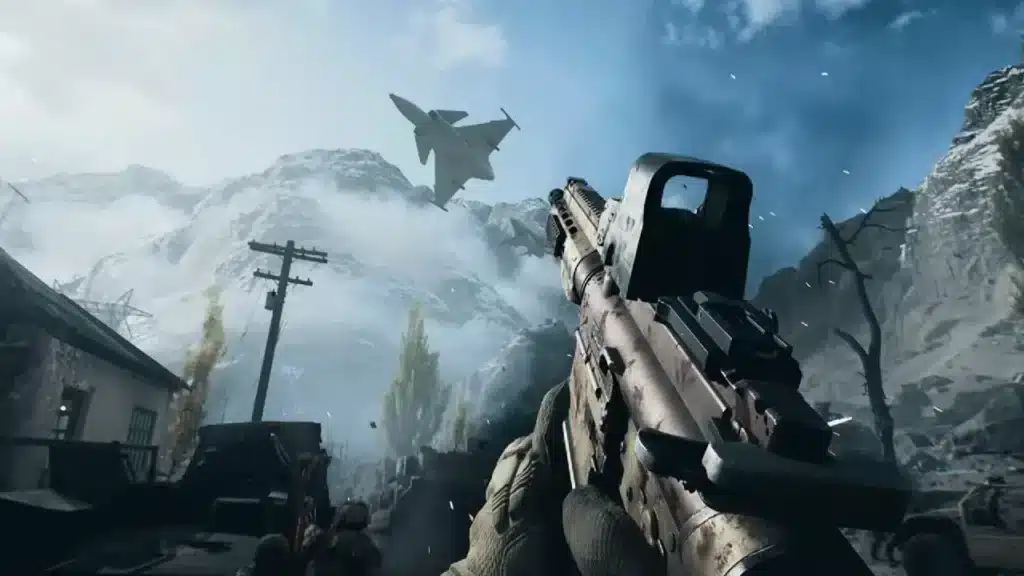
- Ultra Settings bring in detailed shadows, long-range texture loading, enhanced lighting effects, and improved geometry. The environment feels alive and immersive.
- Low Settings, in contrast, offer a stripped-down version with flatter lighting, reduced shadows, and lower draw distances – but the core visibility remains intact.
Performance Impact:
- On Ultra, the GPU does most of the heavy lifting. Expect significant drops in FPS, especially in high-density combat zones.
- On Low, system performance may shift to become CPU-bound in some configurations – especially when using older processors or on low resolutions. This behavior varies based on hardware.
Ideal Use Cases:
- Ultra Settings: Recommended for cinematic playthroughs, screenshots, or users with high-end GPUs like RTX 4080, RX 7900 XTX, or higher.
- Low Settings: Perfect for competitive multiplayer where every frame counts. Reduces distractions and input lag on systems with GTX 1060, RX 580, or integrated graphics.
Visual Optimization Tips for Better Clarity
Even if you don’t touch every individual setting, applying these visual tweaks will immediately improve your gameplay quality:
Turn Off Motion Blur and Film Grain
Motion blur reduces spatial awareness in fast-paced firefights. Film grain can obscure fine details, especially at night or in dark interiors. Disabling both increases clarity.
Raise FOV to Gain Tactical Awareness
Increasing FOV to 90–100 lets you see more of your surroundings, crucial for flanking and spotting enemies. This change offers better combat orientation without compromising FPS.
Post-Processing Reductions
Post-processing includes effects like lens flares, chromatic aberration, and bloom. These cinematic features can be overkill in multiplayer. Reduce or disable them for a cleaner screen.
Disable V-Sync, Cap Frame Rate Manually
V-Sync introduces input delay. Instead, use a manual FPS cap (via NVIDIA Control Panel or AMD Radeon Software) to limit frames and maintain smoother input.
Try Dynamic Resolution Scaling (If Available)
Battlefield 6 lists “Dynamic Resolution Scale” as an option. This setting dynamically adjusts rendering resolution to stabilize performance. However, it can reduce clarity during high-load scenes, so experiment to find the right balance for your system.
How to Adapt Settings for Different PC Builds
High-End PC (RTX 4080, RX 7900 XTX, i9, Ryzen 9):
- Run everything on Ultra except Shadow Quality and Post-Processing
- Set resolution scale to 120% if using a 1440p or 4K monitor
- Lock FPS to monitor’s refresh rate for consistent pacing
Mid-Range PC (RTX 3060, RX 6700 XT, i5/Ryzen 5):
- Use a mix of High and Medium settings
- Lower shadows, disable ambient occlusion
- Keep Texture Quality High if VRAM ≥ 8GB
- Use native resolution at 100% scaling
Low-End or Laptop GPUs (GTX 1050 Ti, Vega 8):
- All settings to Low or Off, resolution at 900p or 720p
- Disable post-processing, ambient occlusion, and complex shadows
- Avoid borderless mode; prefer fullscreen for FPS gains
Also see
- Best Battlefield 6 settings
- How to increase FPS in Battlefield 6
- battlefield 6 fps counter
- battlefield 6 crashes
- Battlefield 6 not working
Boost FPS and Stability in Battlefield 6 with ExitLag
Optimizing in-game settings helps, but connection issues, packet loss, and latency spikes can still hurt your FPS experience. This is where ExitLag steps in.
ExitLag Benefits:
- Multipath Connection: Uses multiple routes to ensure the most stable server link
- Traffic Shaper: Minimizes background interference
- Real-Time Optimization: Adjusts routes live based on network behavior
- Worldwide Servers: Performance coverage no matter your location
Even though ExitLag doesn’t change in-game visuals, it reduces the stuttering and lag that many players confuse with graphical problems. This is especially vital in crowded maps, vehicle-heavy encounters, or high tickrate servers.
How to Use ExitLag with BF6:
- Create your ExitLag account
- Download and install ExitLag on desktop
- Select “Battlefield 6” from the game list and apply routes
- Launch BF6 and experience the difference in performance
You can even run ExitLag in background mode to auto-optimize while launching other apps or games. It integrates smoothly with most competitive launchers.
Competitive Settings for Battlefield 6
When it comes to multiplayer, clarity and responsiveness often matter more than raw beauty. Here are the recommended settings for competitive gameplay:
Ideal Competitive Settings:
- Texture Filtering: High (clarity with minimal FPS cost)
- Anti-Aliasing: TAA or lowest available option. Try disabling AA only if visibility is your top priority. Some community feedback suggests TAA or upscalers offer better clarity than going AA-off.
- Ambient Occlusion: Off (less visual clutter, but may reduce shadow visibility in certain maps)
- Post-Processing: Off (no bloom or lens effects)
- Dynamic Lighting: Low or Off (fewer distractions, but test on your map and hardware for shadow visibility)
- V-Sync: Off (prevents input lag)
- Motion Blur / Film Grain: Off (maximum clarity)
- FOV: 100–105 (broader view for spatial awareness)
- Resolution: Native 1080p or 1440p (based on monitor)
Tip: Use fullscreen mode for better input performance.
Advanced Tips for Stability and Performance
These tweaks are for advanced users and may affect system behavior differently depending on setup. Always test changes and revert if instability occurs.
Set Priority in Task Manager
Open Task Manager > Details tab > Right-click bf6.exe > Set priority to “High”.
- May stabilize CPU scheduling
- Helps reduce stutters in certain configurations
Disable Hardware-Accelerated GPU Scheduling
Found in Windows Graphics Settings. Turning this off may reduce latency on older systems, but can also cause side effects. Test with caution.
Disable Fullscreen Optimizations
- Right-click BF6 shortcut > Properties > Compatibility
- Check “Disable Fullscreen Optimizations”
Note: Some of these advanced tweaks may cause instability or minimal benefit. Always monitor performance and undo changes if needed.
Use Exclusive Fullscreen (Not Borderless)
Reduces display driver latency and input lag.
Adaptive Graphics Based on Frame Drops
Battlefield 6 may offer settings that adapt dynamically:
- Auto-Low Latency Mode: Use with G-Sync/FreeSync monitors
- Frame Capping: Cap at 3–5 FPS below refresh rate (e.g., 141 on 144Hz)
These adjustments minimize tearing and preserve engine responsiveness.
Track GPU Bottlenecks with Built-In Metrics
BF6 may include performance overlays (or use NVIDIA/AMD tools). Monitor GPU utilization. If it’s near 100%, lower settings like shadows or ambient effects.
ExitLag: Your Secret Weapon for Smooth Performance
Advanced players know that FPS alone isn’t enough – stable input and ping matter just as much. ExitLag boosts overall gameplay responsiveness by:
- Reducing network jitter and rubberbanding
- Optimizing server path in real time
- Cutting unnecessary background traffic that eats bandwidth
ExitLag Benefits for Competitive Graphics:
- More stable FPS due to fewer background interruptions
- Reduced packet loss during high-action moments
- Less chance of freezes or spikes when under heavy system load
Even though BF6 may appear like a typical shooter, it is fully online, and all gameplay modes involve persistent connections. Network issues often feel like performance drops.
Quick ExitLag Setup:
- Sign up and install ExitLag
- Search “Battlefield 6” in the game list
- Apply optimized routes with one click
- Keep ExitLag running while you play
ExitLag ensures every pixel you see is updated on time – crucial for any competitive scenario.
Final Thoughts: Maximize Performance Without Sacrificing Precision
The second half of our Battlefield 6 graphics guide pushes beyond the presets. Whether you’re tuning for competitive play, testing advanced configs, or reducing input lag, every setting counts.
Pair these graphics adjustments with ExitLag’s optimization suite and you’ll have a distinct edge in both responsiveness and visual control. Frame rate, clarity, and stability-master them all and dominate the battlefield.
For additional configuration inspiration, refer to community guides such as ProSettings.net’s Battlefield 6 page.
General disclaimer: All game images used in this blog belong to Electronic Arts. They are used for informational/educational purposes only and do not imply endorsement or affiliation with the rights holders.
Got questions or want to connect with other players? Join the conversation at the ExitLag Forum!